How to automatically update your website from notion
Written on 2026-07-08, Last updated 2026-07-08
I love notion. This page and all of my other essays are updated from my Notion database automatically. You can link your notion & website in a way such that new writings you create in Notion (eg. on a dedicated database) appear on your website automatically. (GitHub Action polls Notion every hour ( / other increment of time), pulls every row/page, and publishes each one as its own page on the site plus updates the menu list.)
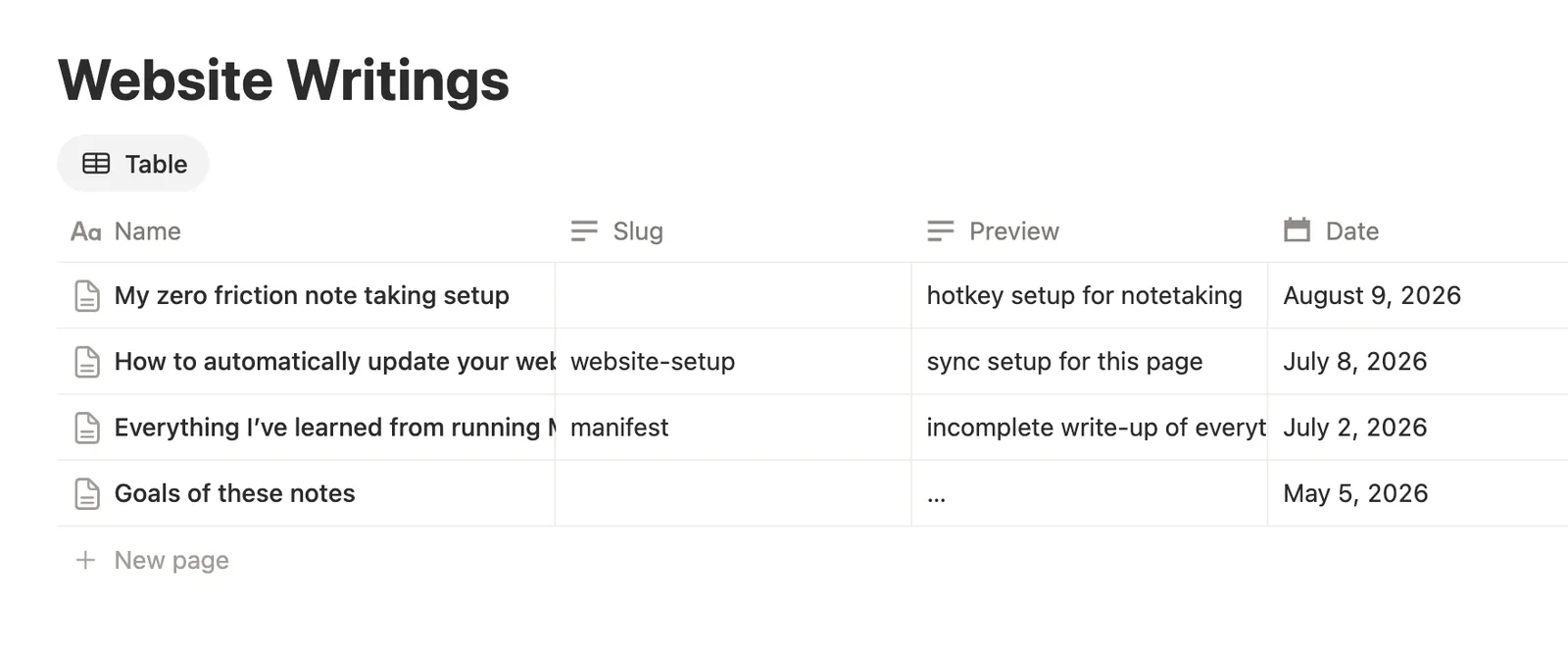
My setup (text written by claude)
A GitHub Action (.github/workflows/notion-sync.yml) runs once an hour (and you can trigger it on-demand from the repo’s Actions tab). Each run:
Reads every essay from the Notion “Writing” page via the Notion API.
Converts each one to HTML using the site’s template ().
scripts/notion-sync/sync.mjsWrites one
<slug>.htmlper essay and rebuilds the list onwriting.html.Downloads images into
images/notion/<slug>/— because Notion’s own image links expire after ~1 hour, so it makes local, permanent copies.Commits the result
So edits show up within the hour, or instantly if you hit “Run workflow.”
extended version
Auto-publishing writings from Notion
New writings you create in Notion appear on carolannejiang.com automatically, styled to match the rest of the site.
How it works
You keep one Notion source for your writing. It can be either shape — the sync auto-detects which:
Option 1 — a plain page with sub-pages:
📄 Writing              ← the parent page (you connect the integration to this)
   ├─ 📄 On Friendship      → <https://www.carolannejiang.com/on-friendship.html>
   ├─ 📄 Notes on Drawing   → <https://www.carolannejiang.com/notes-on-drawing.html>
   └─ 📄 Draft: half-baked  → skipped (title starts with "Draft:")
Option 2 — a database / Table view (if you like the tidy table look). Each
row is a page: open a row and write the essay in its body. No columns are
required — just the title and the body. If you add a Published checkbox
column, unchecked rows are skipped; otherwise every row publishes.
| Title             |   ← each row opens into a full page you write in
| ----------------- |
| On Friendship     |   → /on-friendship.html
| Notes on Drawing  |   → /notes-on-drawing.html
Either way: the title becomes the essay title + URL, the page body is
the content, and the created date is the date shown. Sub-pages/rows titled
Draft: ... are skipped.
Once an hour, a GitHub Action reads every sub-page, converts it to HTML using
the site's template, writes one <slug>.html per essay, and rebuilds the list
on writing.html. It commits the result and GitHub Pages publishes within a
minute.
- Title of the sub-page → the essay title and its URL.
- Created date of the sub-page → the date shown on the piece.
- Preview column (Table only) → the one-line summary on the Writing index.
Type any text in a
Previewcolumn (also acceptsDescription/Summary/Excerpt) and it's used verbatim. Leave it blank and the first paragraph of the essay is used instead. - Order on the site:
- Page with sub-pages: the order you arrange the sub-pages in Notion.
- Database / Table: Notion's API cannot read a Table view's manual
drag-order, so add a number column named
Order(orSort/Position/Rank) and type1,2,3… — essays sort by it ascending. Rows with no number sink to the bottom. No such column → the existing order is kept.
- Sub-pages titled
Draft: ...are skipped. To keep something private, either prefix itDraft:or keep it outside the Writing page until ready.
You never touch HTML. Write in Notion, and it goes live.
One-time setup (about 10 minutes)
1. Make the parent page in Notion
- Create a normal page called Writing.
- Inside it, create a sub-page for each essay (type
/pageor just add a page block) and write in them.
2. Create a Notion integration and get the token
- Go to Notion | Where teams and agents work together → New integration.
- Name it (e.g. "Website sync"), pick your workspace, Internal type, save.
- Copy the Internal Integration Secret (starts with
ntn_, older onessecret_). This is yourNOTION_TOKEN.
3. Connect the integration to the Writing page
- Open the Writing parent page in Notion.
- Top-right •• → Connections → Connect to → your integration. (Sub-pages inherit access — you only connect the parent.)
4. Get the parent page ID
Open the Writing page and copy its link (••• → Copy link, or the
browser URL). The 32-character chunk at the end (before any ?) is the ID:
<https://www.notion.so/Writing-2058d1b23wec780a9b7f4f2c5721135ce>
                               └──────────────────────────────┘
                                     parent page ID
Dashes in the ID are fine either way.
5. Put the values into the GitHub repo secrets
Repo → Settings → Secrets and variables → Actions → New repository secret:
NOTION_TOKEN→ thentn_…secret.NOTION_PARENT_PAGE_ID→ the parent page's 32-char ID.- (If you already have a secret named
NOTION_DATABASE_IDfrom before, you can instead just edit its value to the parent page ID — the script accepts either name.)
- (If you already have a secret named
6. Turn it on / test
- Repo Actions tab → Sync writings from Notion → Run workflow.
- After it finishes, check
writing.htmland your new pages on the site.
Good to know
- Nested pages are followed. You can write the essay directly in the row/ sub-page body, or in a page nested one or two levels inside it — the sync inlines that nested content either way.
- Images are made permanent. Notion's own image links expire after ~1 hour,
so the sync downloads each image into
images/notion/<slug>/and points the page at that local copy. Change an image in Notion and the next sync updates it. (External images you link to by URL are left untouched.) - Renaming an essay changes its URL (the slug comes from the title), which breaks old links to it. Rename before sharing, not after.
- Editing: just edit the sub-page in Notion; the next sync overwrites its page.
- Unpublishing: delete the sub-page, move it out of the Writing page, or
rename it to start with
Draft:. The next sync removes its page. Only files this tool generated are ever deleted — hand-written pages are protected. - Speed: updates appear within the hour, or instantly via Run workflow.
- Don't hand-edit generated
<slug>.htmlfiles or the block between theNOTIONmarkers inwriting.html— the next sync overwrites them.
Run it locally (optional)
cd scripts/notion-sync
npm install
NOTION_TOKEN=ntn_xxx NOTION_PARENT_PAGE_ID=xxxx node sync.mjs